Search a place, tap it, and your map is there.
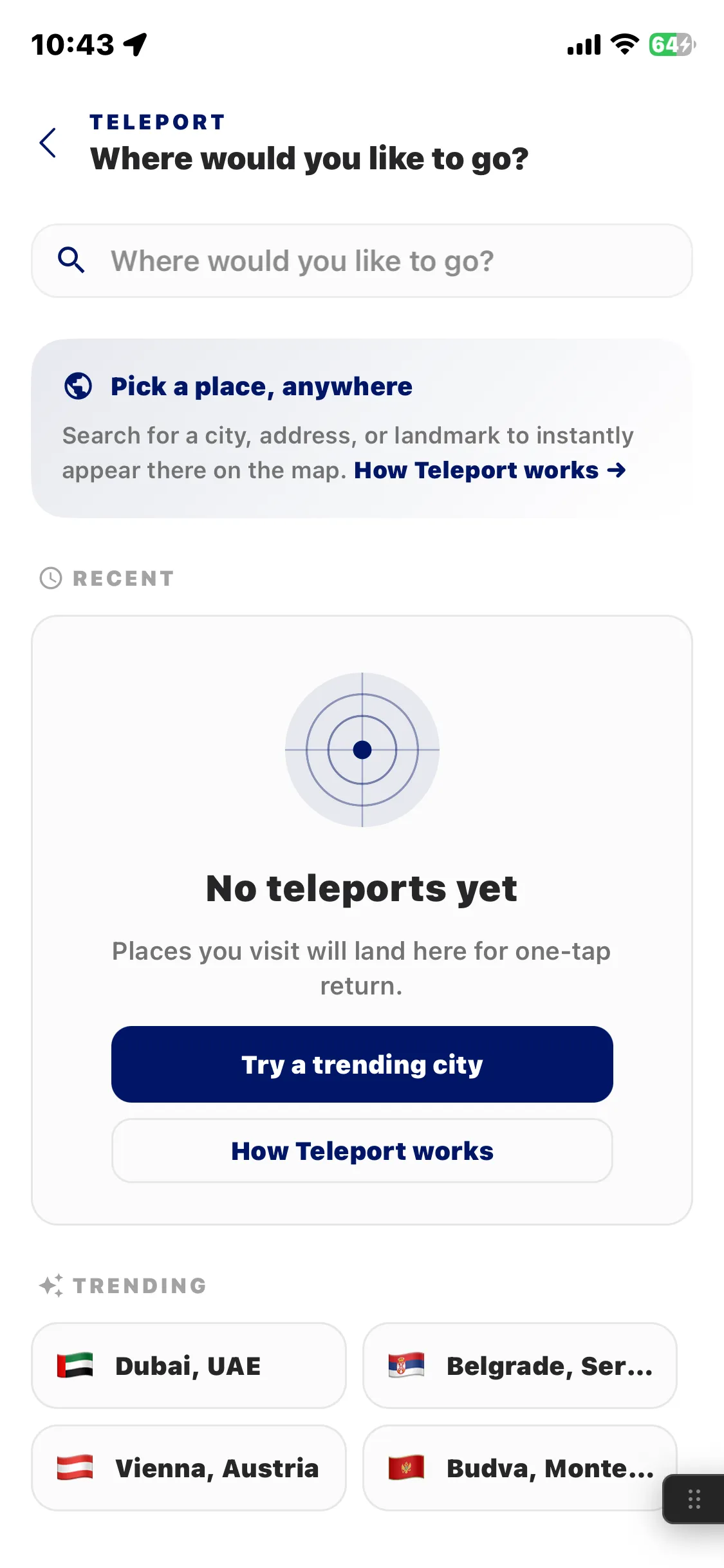
Teleport is the first control in the location tools row, under the Explore map's results card. It opens a search modal: type at least two characters, pick a result, and your position jumps there.
Free in the RU4M app — iOS and Android.
1st
control in the location tools row, under the results card
2
characters minimum before results come back
Local bias
the search is weighted toward where you are
Recenter
leaving a teleported view is a button of its own, above the card
Tap, type, tap.
Open Teleport
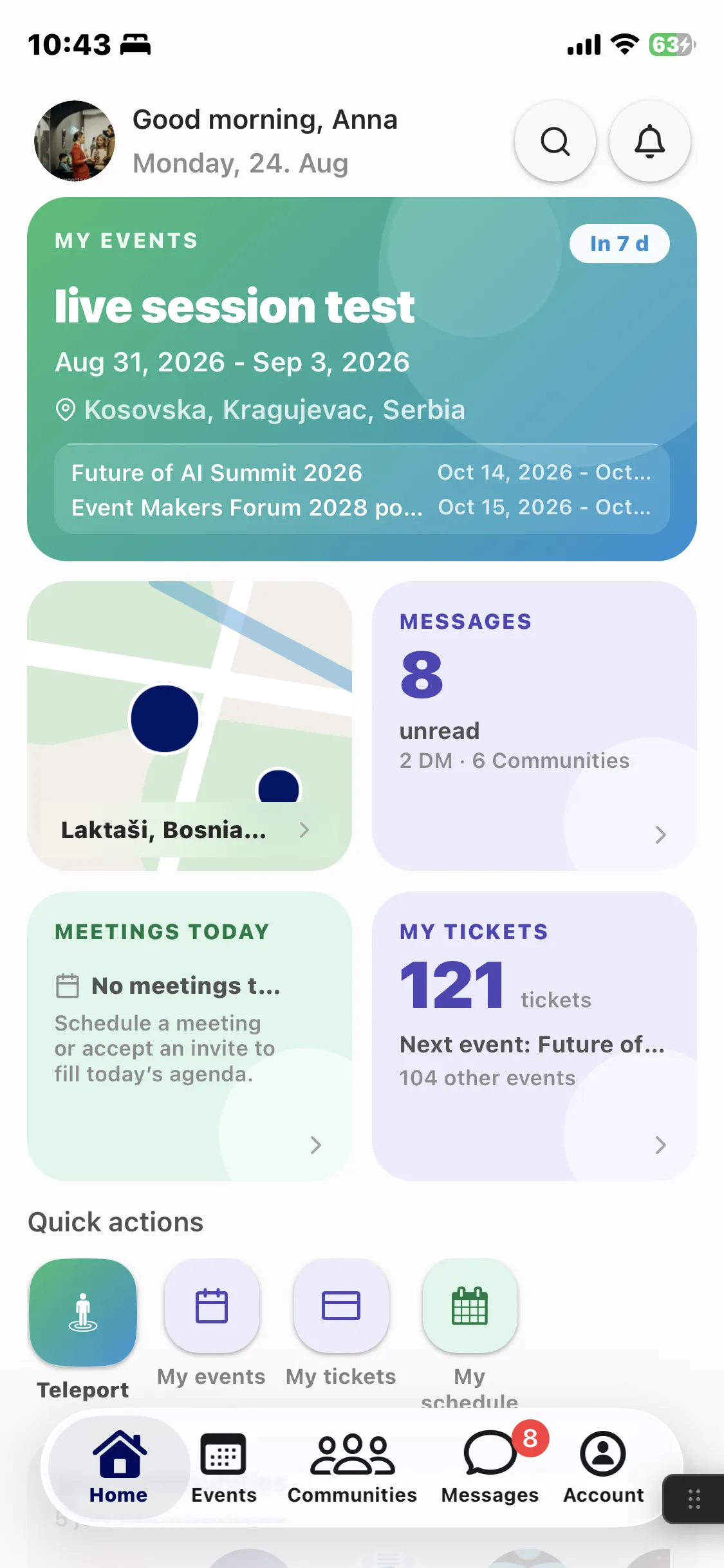
On the Explore map, tap Teleport — the first control in the location tools row, under the results card. A search modal opens over the map, with the field already focused.
Type at least two characters
Results come back as you type. Your current position goes with the query, so the search leans toward the places around you.
Tap a result
Your position jumps to it, and the map redraws around the new place. Nothing else to confirm.
The whole map moves with you.
Tap a result and everything anchored to your position re-renders around the new place.
- The map itself
- The nearby pins
- The clusters
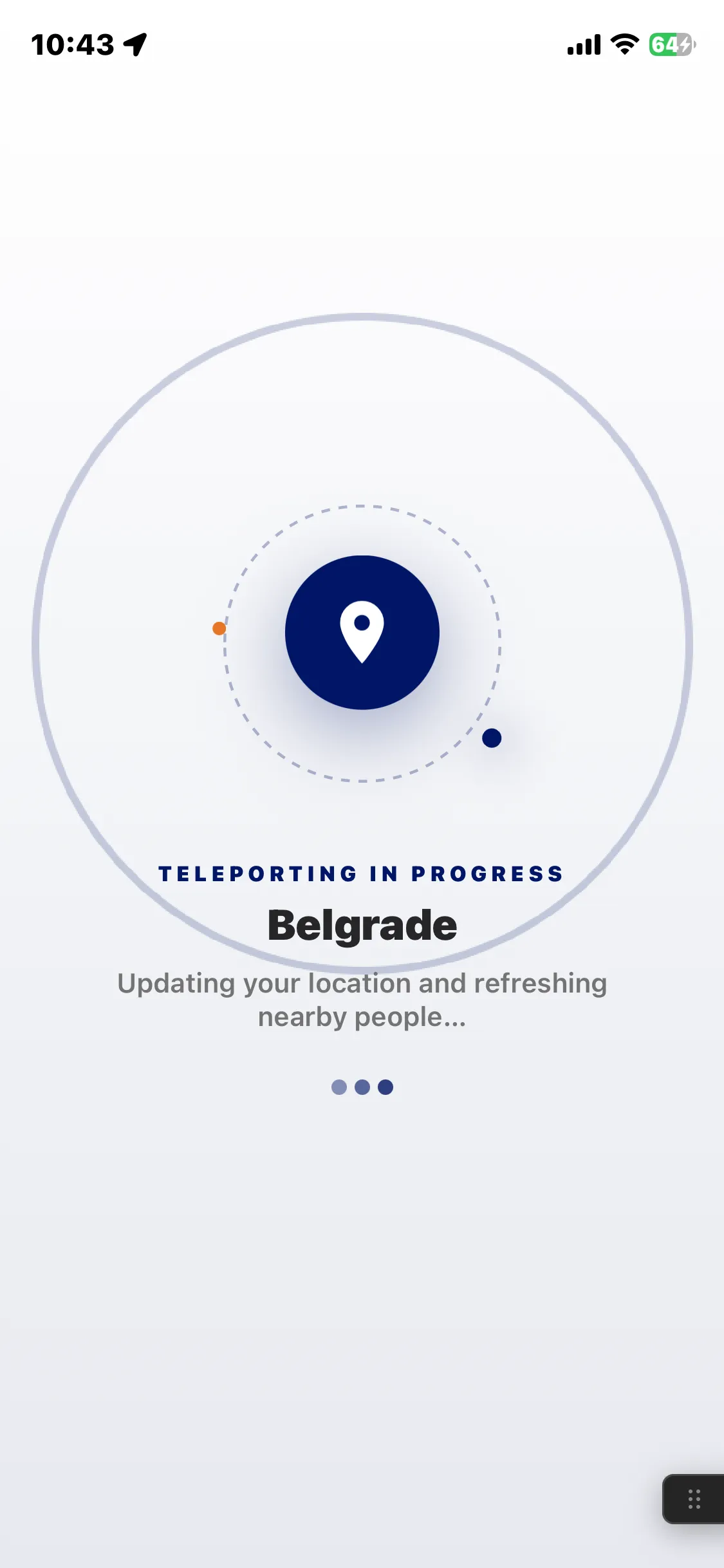
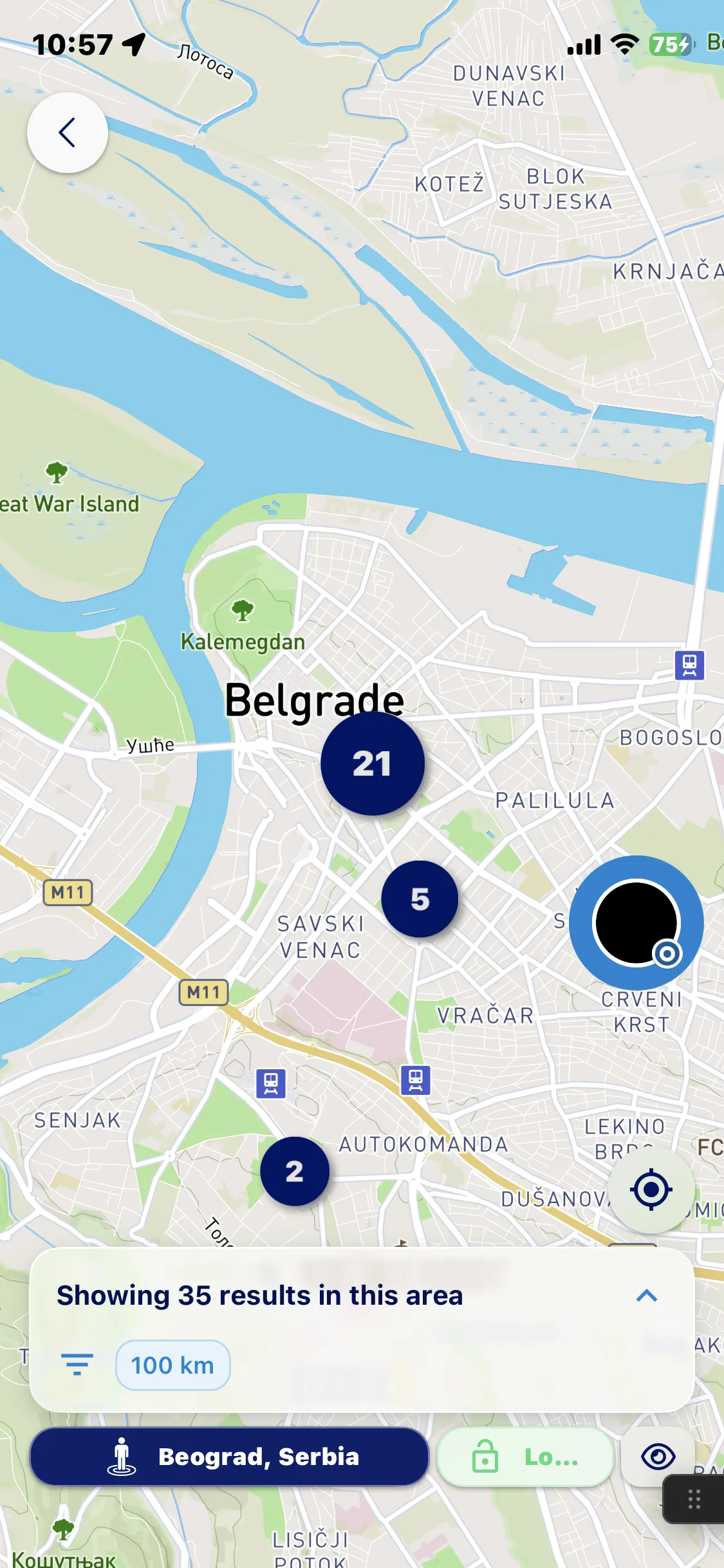
Watch your map move to a new place.
Search for a place, choose it, and RU4M refreshes the map around your new position.
Leaving a teleported view is a control of its own.
The recenter button
Not one of the location tools: it is a floating button above the results card, labelled “Center map on my location”. That button is how you leave a teleported view.
Blue border, green border
A teleported user carries a blue border on their pin, so nobody has to guess whether you are really there. Green is a different state — that pin is locked, not teleported.
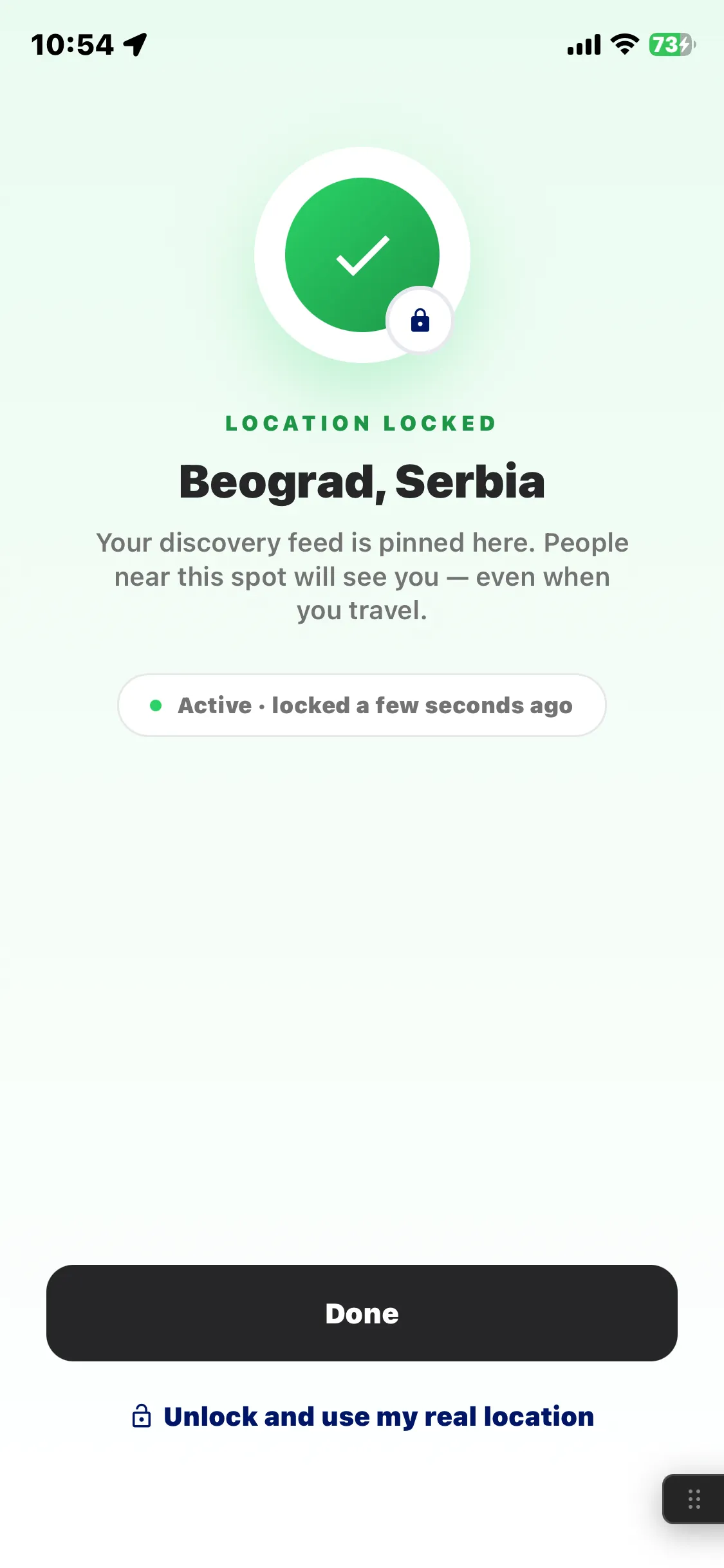
- Blue border — this person has teleported
- Green border — this person’s location is locked
Locking, unlocking and hiding your location are Location Controls, on the Explore feature page.